Drawings gives each project a clean, searchable drawing set. You upload the architect's multi-page PDF, RolloutIQ splits it into individual sheets and reads each title block, and your team gets one trustworthy current set to preview and work from. This article walks through uploading, reviewing, publishing, and maintaining a set.
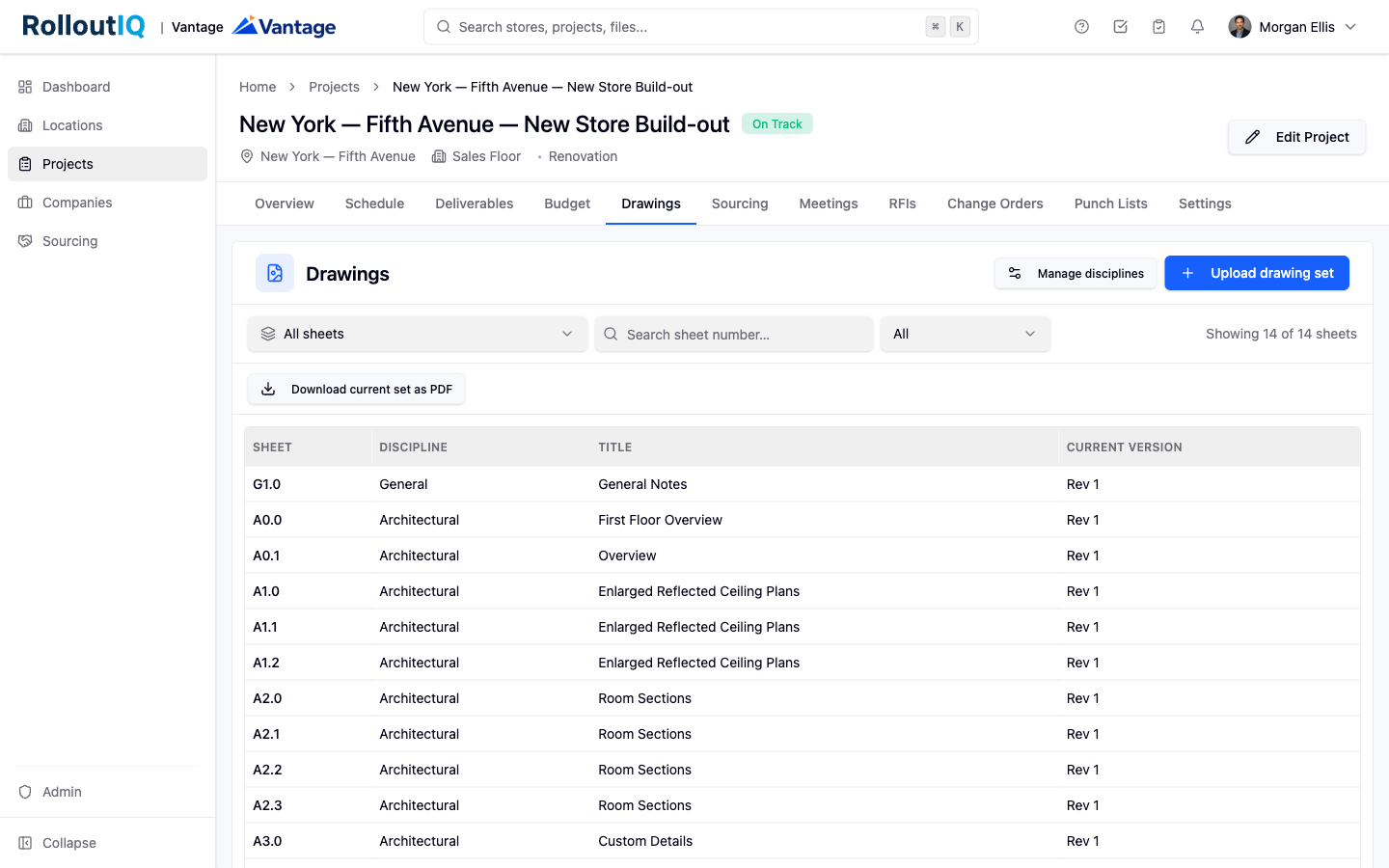
Drawings is an optional module, so it may not be enabled for every account. If you do not see a Drawings tab on your project, your administrator has not turned it on.
Open a project and switch to the Drawings tab.
Click Upload drawing set and choose the architect's PDF. The source file must be a PDF.
Fill in the Set name, the Issue date, and an Issuance purpose such as Construction Documents, Permit, or Issued for Construction.
Submit. The set lands in Draft state, visible only to you and your project admins while it processes in the background. You can leave the page and come back.
After upload, RolloutIQ splits the PDF into individual sheets and reads the title block on each page to capture its sheet number, discipline, and title. To guide that reading, open the title-block step and drag a rectangle around the title block on a sample page. RolloutIQ pre-fills a suggested region, and confirming it re-reads every page against that crop. Each sheet becomes a durable identity, so downstream work that points at a sheet stays pointed at the same sheet across future issuances.
Open Review sheets and step through the per-sheet table. Confirm or correct the sheet number, discipline, and title that RolloutIQ read from each page. Pages it could not read confidently are flagged for your attention.
When every sheet is reviewed, click Publish. The set flips to Published and becomes visible to every project member.
Any sheet that matches a sheet number from a prior issuance automatically supersedes the older version, and the older version moves to history. Only project admins and owners can publish, archive, or edit sheet identity.
Use the search box to jump to a sheet by number, or filter by discipline. Sheets are sorted in standard discipline order.
Click any sheet to open its preview. Click Version history to see every prior issuance of that same sheet, including who uploaded it and when.
Choose Download current set as PDF to compile the current version of every sheet into a single PDF for emailing or printing.
To retire a set, open its detail page and click Archive. It drops out of the default lists but stays restorable.
