A project is the workflow that delivers a change to a single store, whether that is a new build, refresh, remodel, relocation, or closure. Each project is anchored to a target open date and gathers the schedule, deliverables, tasks, and team in one place. This article covers how to find a project and move through its sections.
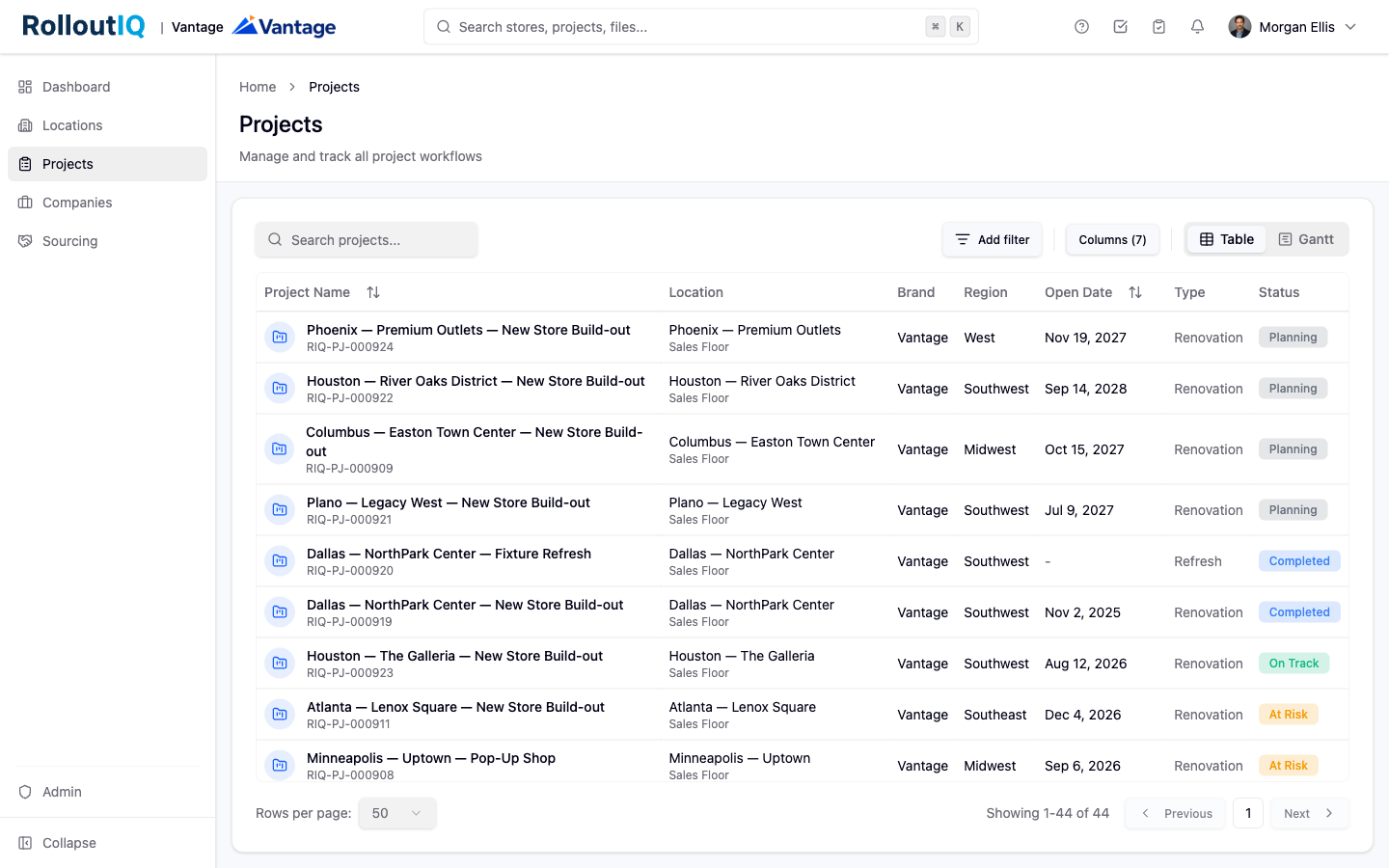
The projects list shows every project you have access to.
Click Projects in the sidebar.
Each row shows the project name, project number, location, space, type, status, and open date.
Use the toolbar above the list to narrow a large portfolio down to what you need.
Type into the Search projects box to find by project name, location, or project number. Project numbers match in any format, so 47, PJ-47, and the full number all return the same record.
Click Add filter to narrow the list by attributes such as brand, region, location, type, and status. Filters combine, so you can stack several at once.
Click a column header to sort the list, or use Sort and Columns in the toolbar to change the order and which columns show.
Click Clear filters to reset the list.
The timeline plots every project as a horizontal bar so you can scan open dates across the portfolio.
Use the View as control and choose Gantt to see each project as a bar running to its target open date. Choose Table to return to the list.
A project needs schedule data before it appears on the timeline. Switch back to the table to manage projects that are not yet scheduled.
Click any project to open its detail page.
The header shows the project number, name, location and space, type, status, and target open date.
Click Edit Project to change the status or move the target open date. When you move the open date, the schedule can be recalculated from the new anchor.
The navigation across the top of the project takes you through its sections. Which sections you see depends on what your tenant has turned on and what you have access to on that project.
Overview: a summary of the project, its progress, and its team.
Schedule and Deliverables: the timeline and the milestones that race to the open date.
Drawings, RFIs, and Files: the documents and formal questions tracked on the project.
Team and Companies: the people and outside firms assigned to the work.
You only see the projects you or your company have been given a role on. If a project is not in your list, you have not been assigned to it yet.
