A Space is the physical real estate a store occupies: the leased suite in the mall, the freestanding pad, the in-line shop in a strip center. In RolloutIQ, Spaces sit underneath Locations and above Projects. This article explains what a Space is, why it is kept separate from the store, how to add and edit one, and how relocation is handled.
A Location is the operating store. A Space is the piece of real estate that store sits in, with its own type, square footage, address, and project history. RolloutIQ keeps these separate on purpose, because retail portfolios move: stores relocate to a bigger box in the same center, expand into the suite next door, or hand the keys back to the landlord.
Keeping the real estate as its own record means the lease facts, the address, and every project attached to a piece of real estate stay together, even as the store's lifecycle moves around them. Real estate teams get a clean record of every premises the brand has occupied, and construction teams get a stable parent for every project that ran in that suite. One Location can hold multiple Spaces over time, and each Space can host its own Projects.
You reach Spaces through their parent Location. Open a store and find the Spaces section, which lists the real estate it occupies, current and historical, with the type, size, and address on each row.
In the Spaces section, click Add Space. A side panel opens with the Space form.
Choose a Space Type (required). The list is your account's library of types, such as in-line, pad, freestanding, and kiosk, plus any custom types your admin has added.
Optionally add a Space Name, the Square Footage, and the Open Date.
To attach a physical address, turn on Add Address. As you type the street, address autocomplete fills in the city, state, postal code, and country.
Submit. The Space is created under the store and receives a reference number in the form RIQ-SP-000001.
Only the Space Type is required. Every Space belongs to exactly one Location and cannot exist on its own.
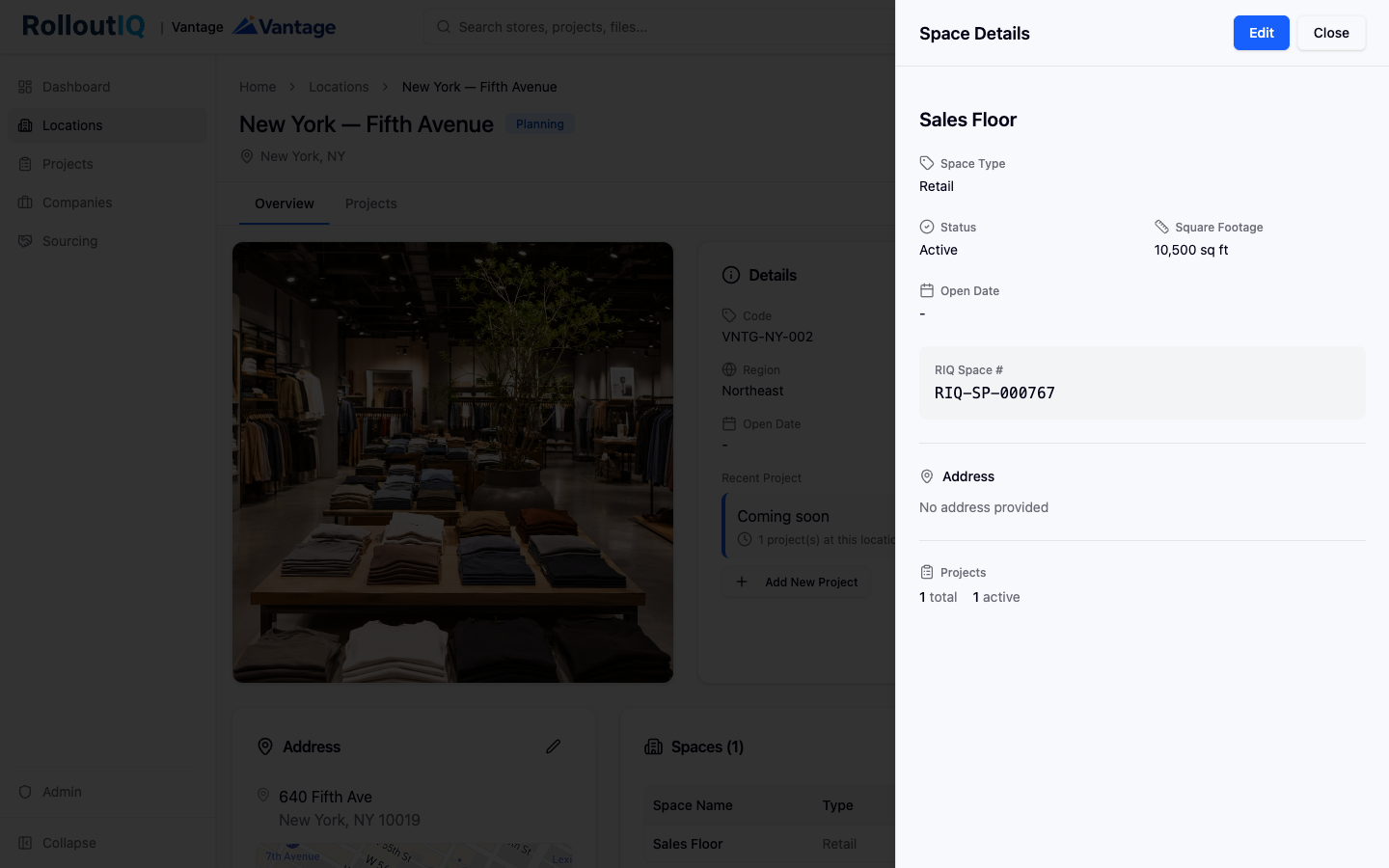
Click a Space row in the store's Spaces section. A detail panel slides in.
The panel shows the name, type, square footage, open date, the RIQ Space number, and the address with a small map. A Projects rollup at the bottom shows how many total and active projects are attached.
Open the edit form to update any field. You can update or replace the address without losing the Space's identity or its project history, so a re-survey or a unit renumbering by the landlord does not break anything.
To start a project on a piece of real estate, open the Space and create the project from there. The project belongs to the Space it was created on and stays with that Space in the historical record.
When a store relocates, you do not move the existing Space. Instead, the store keeps the same Location record, the old Space retires, and a new Space comes online under that same Location:
Add the new Space under the same Location, following the steps above.
Run the relocation project on the new Space.
The old Space stays on the Location as history, with its own address and its past projects intact.
This keeps the through-line clean: the store's identity is continuous, and each piece of real estate retains its own project history. A Space cannot be moved from one Location to another. If you picked the wrong parent store when creating a Space, delete it and create a new one under the correct Location. Deleting a Space hides it from default lists but keeps the record, its address, and its projects for audit purposes.
