The Library is where administrators control the lookup lists RolloutIQ uses across your workspace. Every status badge, every dropdown option, and every taxonomy your team picks from is set here. The lists are owned by your tenant, so you shape the product around your vocabulary instead of adapting to a fixed one. You find the Library under Admin.
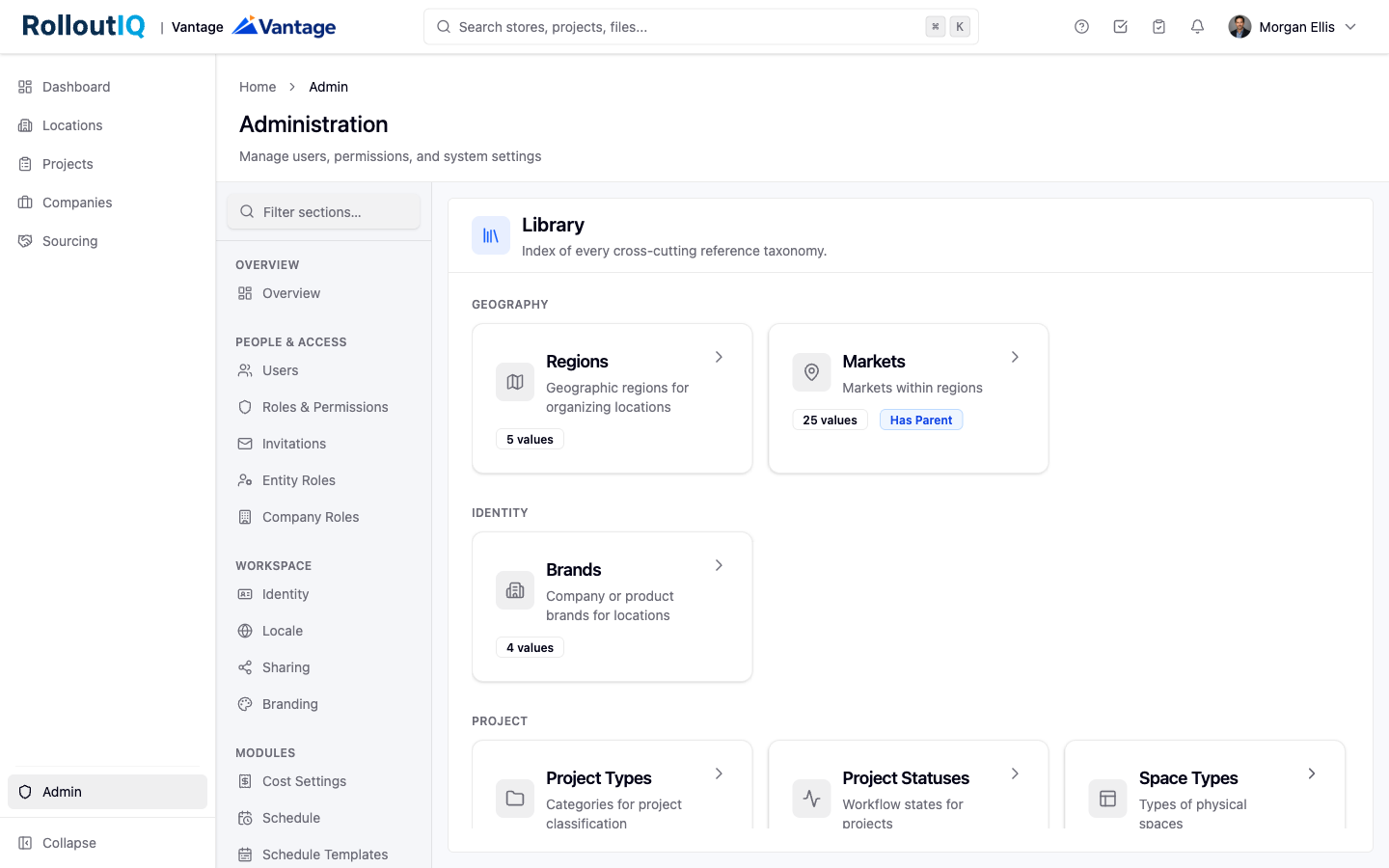
The Library covers cross-cutting reference data used throughout the product, including:
Brands, regions, and markets that group and roll up your locations
Project types, project statuses, space types, and address types
Disciplines with their entity roles and company roles
Schedule phases and deliverables, task statuses, and RFI classifications
General taxonomies live on the Library landing page. Module-specific lists, such as phases, deliverables, and RFI classifications, live under their matching module page, but they work the same way.
Open a catalog. Select a catalog to see its current values in a table, sorted the way users see them in pickers.
Add a value. Choose Add Value, then set a name and, for catalogs that display badges, a color.
Rename, recolor, or reorder. Select any row to edit its name, description, or color. Drag rows to reorder them, and the new order applies immediately to dropdowns and filters across the product.
Retire a value. Delete a value you no longer need. Each value shows how many records use it, and if a value is still in use the delete is blocked with a message telling you how many records reference it.
Every catalog is translatable across the nine supported languages. From a catalog, open the Translations tab, pick a language, and enter the translation for each value. Editing one language never overwrites another, and any value you leave untranslated falls back to the canonical English label automatically, so a label never breaks.
Some values are seeded by the system because the product reads against them to drive workflow. You can rename their display label, recolor them, reorder them, and translate them, but you cannot delete them. A short notice on the row tells you when a value is system-protected.
