RolloutIQ controls access in layers. A global role sets what kind of user someone is across your workspace, and role assignments on individual projects, locations, and spaces add fine-grained access on top. This article goes beyond inviting a user and covers editing and deactivating accounts, assigning roles, and tuning what each role can do. You manage all of it from Admin, People & Access.
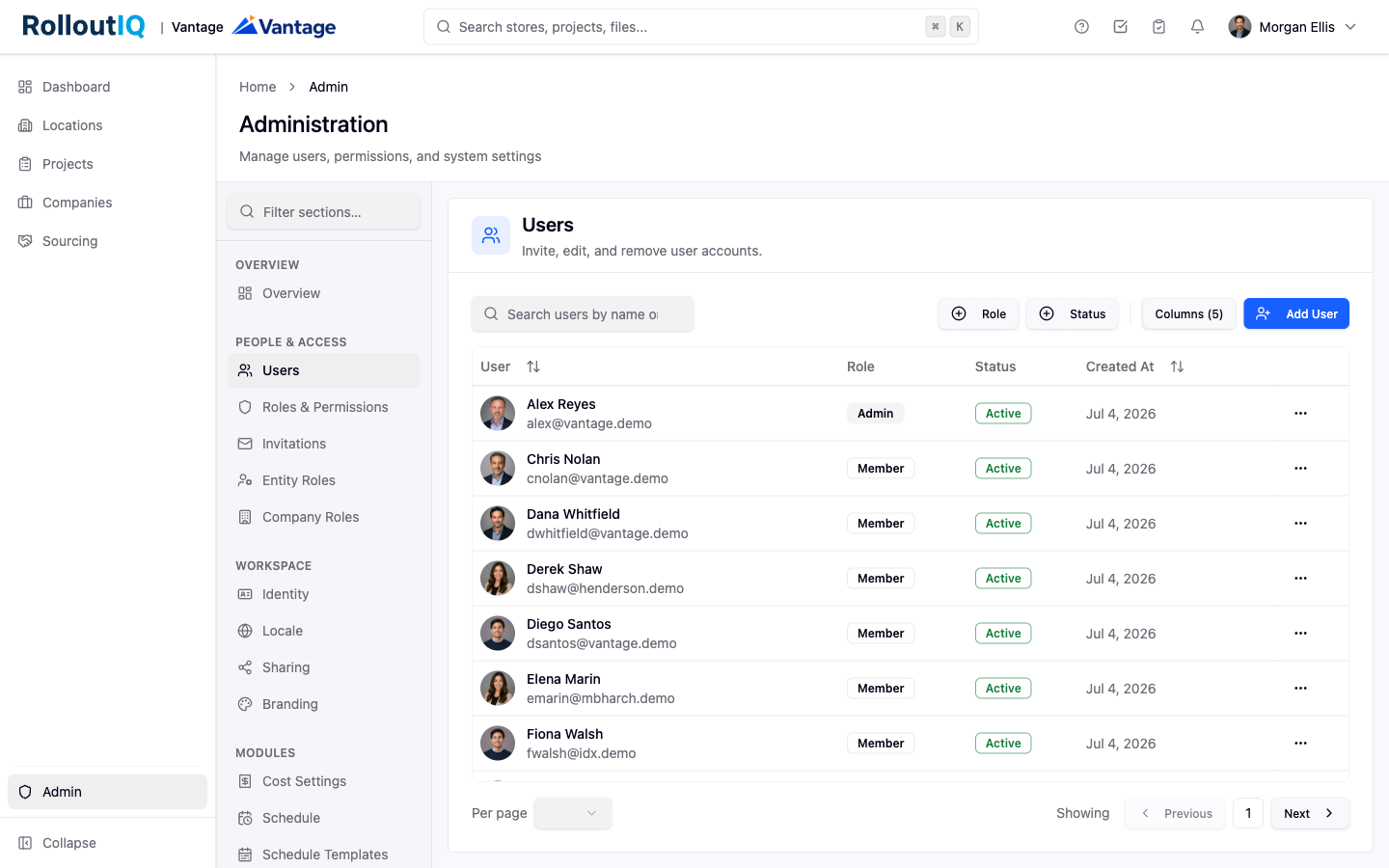
Every workspace ships with four fixed global roles. You can adjust the permissions each one carries, but you cannot create a fifth global role or rename the four.
Owner — full control, including billing. The seeded default owner account cannot be deleted or deactivated, which prevents an accidental lockout of the workspace.
Admin — full operational control except billing.
Member — the standard internal user.
Guest — a stripped-down baseline for external collaborators such as contractors and consultants.
Invite a user. From the Users page, click Invite User, enter the email address, pick a role, and choose the invitation language. The recipient gets a single-use link to set up their account.
Edit a user. Click any row to open Edit User, where you can change the first name, last name, display name, and role.
Attach employer companies. Use the Employer companies section to link a user to one or more outside firms and mark one as primary. This is how vendor and consultant users inherit access through their company.
Deactivate a user. Set the status to inactive. Deactivated users cannot sign in, but their history stays attributed so comments, files, and assignments remain intact. You can reactivate them later.
Global roles set the baseline. Everyday project access comes from role assignments, and there are two kinds. Both live under Admin, Library, grouped by discipline.
Entity roles are assigned to an individual user on a specific project, location, or space. Add someone from the Team tab of that record and pick the role they hold there.
Company roles are assigned to an entire vendor firm. Every employee linked to that firm inherits the company's access on that record automatically, so you can onboard a whole partner team in one step.
Each entity role and company role grants a set of fine-grained capabilities on whichever project, location, or space it is assigned to. You decide what that set includes.
Open the role. Under Disciplines and their entity or company roles, click the role you want to adjust.
Open its capabilities. Choose Capabilities to see every permission the role can grant when a user or company is assigned to a record.
Adjust and save. Select or clear individual capabilities. Changes take effect on the next request, so a revoked capability stops working right away. To adjust what the global Owner, Admin, and Member roles can do, use Roles and Permissions instead.
