Meetings gives a project's recurring coordination calls a structured home, so each call ends with a durable record of what was decided and who owes what. You capture attendees, notes, decisions, and action items in one place, then publish to lock the record as the official minutes. Open items from prior calls carry forward automatically so nothing slips.
Meetings may need to be enabled for your tenant before the section appears on a project. If you do not see it, ask your administrator to turn it on.
Open a project and go to the Meetings section. You see every meeting on the project with its status, scheduled date, and counts of decisions and action items.
Click New meeting. Pick a meeting type, set the date and time, and add an optional duration, location, and meeting URL.
If your admin configured an agenda template for that meeting type, the notes are pre-filled with it.
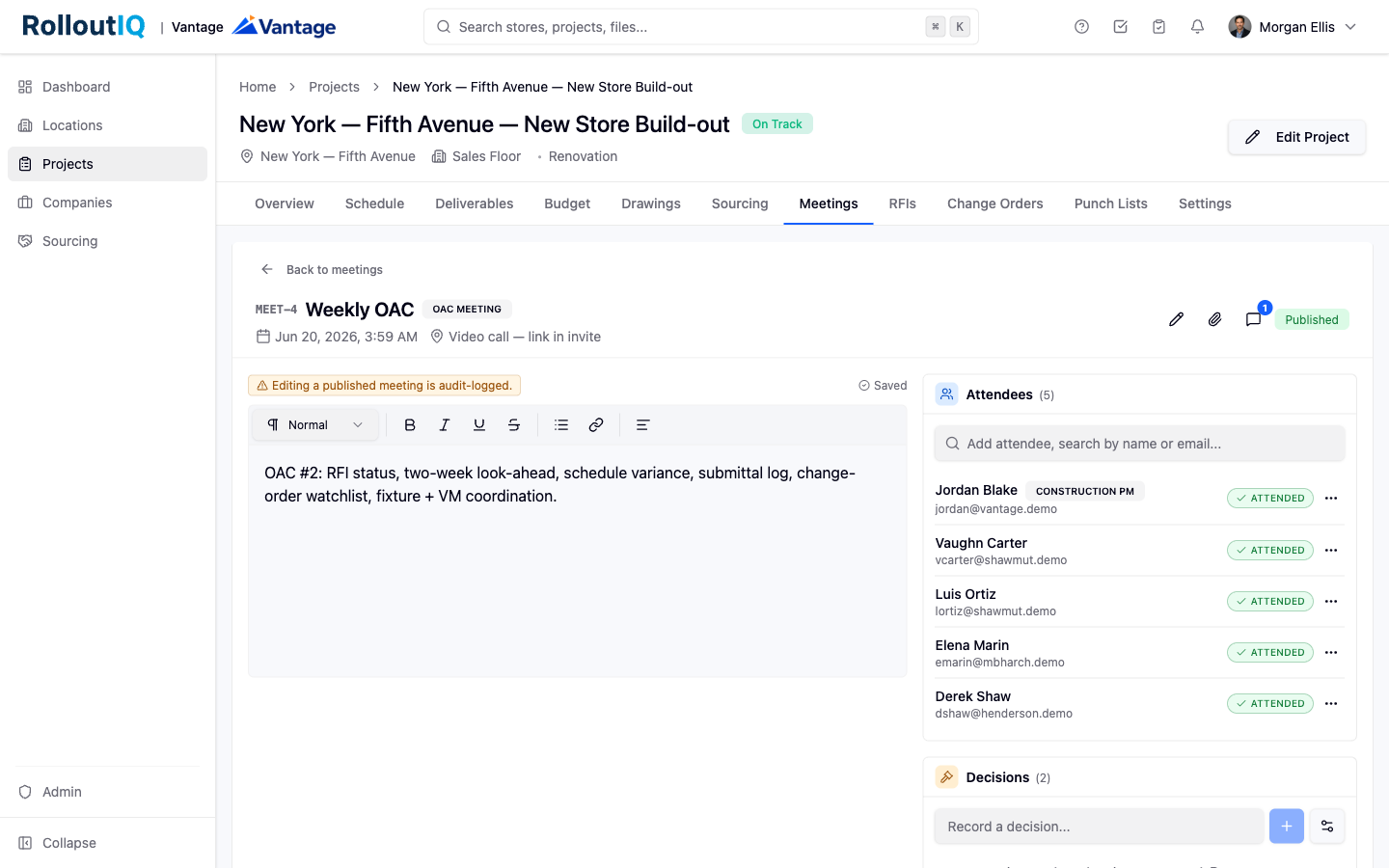
Open the meeting to work in it. Notes sit on one side, with widgets for attendees, decisions, and action items alongside.
In the attendees widget, search by name or email and click to add. Only people who can already access the project appear. Use each person's attended toggle to record who actually showed up.
Write in the notes field. It is rich text and autosaves as you type.
Use Record decision to log a decision with a title, optional detail, and a decided-on date. A decision can supersede one from a prior meeting, with links between the two so the record reads correctly either way.
Capture action items in the tasks widget. Quick-add a title, or open the full form to set an assignee, due date, priority, and description. These are normal tasks and show up in the assignee's personal My Tasks list.
When the call is over, click Publish. RolloutIQ confirms how many attendees will be notified before you commit.
Publishing makes the minutes the official record and notifies every attendee. The meeting shows a published badge afterward.
You can still edit a published meeting, but every change is audit-logged. You cannot un-publish in the current version.
Carryover keeps blocked action items in view week after week until they are resolved.
When you open a new meeting on the same project, a section lists open action items carried over from prior meetings.
Triage each one in place by completing it, cancelling it, or hiding it for now, or click through to the full task to update it.
The carryover snapshot is captured at publish time, so the record of what was still open at each meeting stays intact.
