Comments keep discussion attached to the work it is about. Supported records, such as RFIs and schedule items, each carry their own conversation, so the back-and-forth about a decision lives next to the decision itself instead of scattering across email and chat. The next person to open the record sees what was said and why.
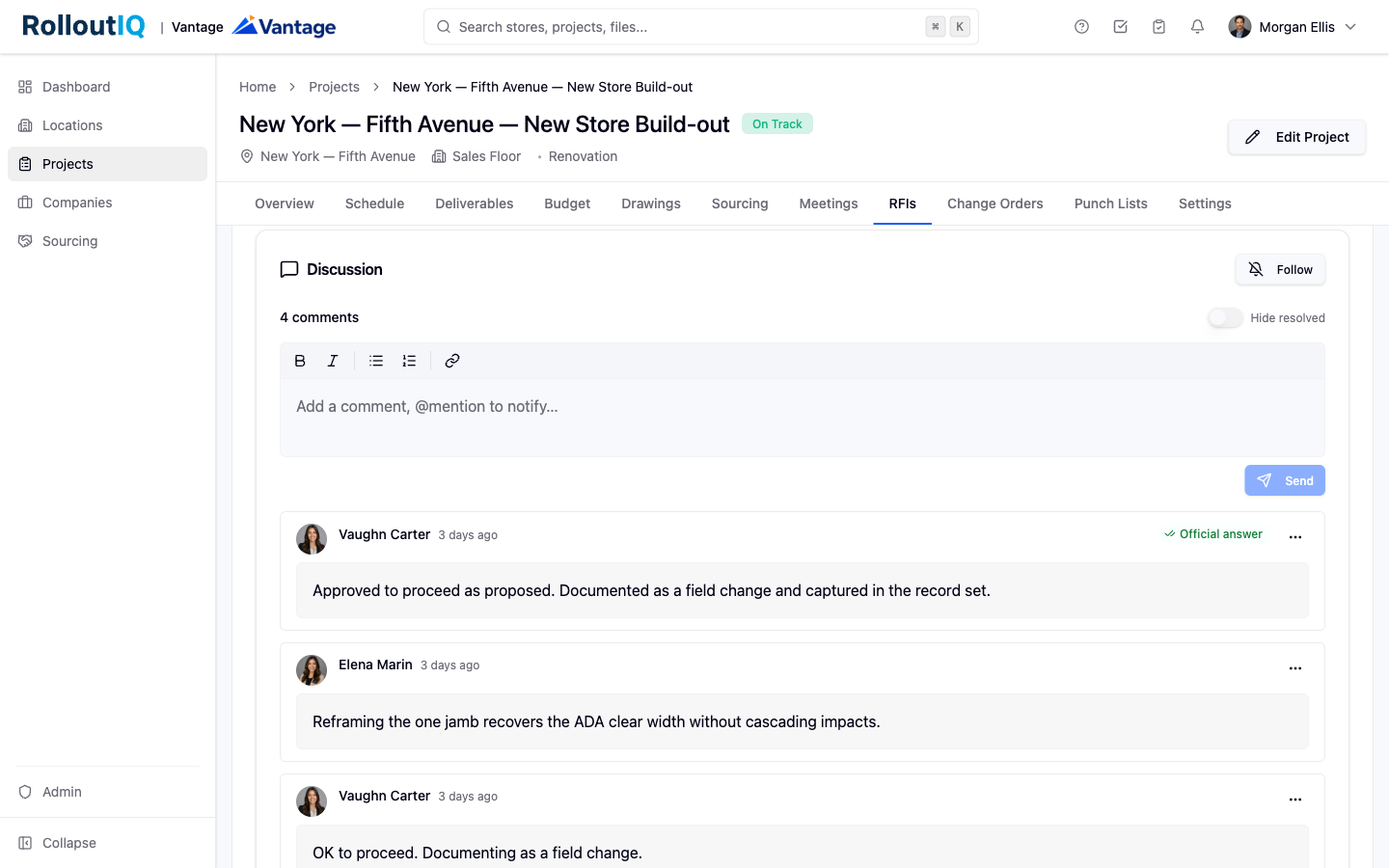
Open the record and scroll to the Comments section near the bottom.
Click the composer and start typing. Use the toolbar for bold, italic, bulleted or numbered lists, and links.
Click Send to publish. Your comment appears at the bottom of the thread. You are automatically subscribed to any thread you post in.
You can comment on any record you have access to. If a record is restricted from you, its thread is too.
Type @ anywhere in the comment body to open the typeahead, then start typing a name.
Pick a name from the list. It becomes a chip in your comment. The list only shows people who can access the record, so external vendors and contractors appear only where they have access.
When you send, the mentioned person gets an immediate in-app notification and an email with a link that opens the record and jumps to your comment. They are subscribed to the thread from that point on.
Mentions belong in the comment thread. You cannot @-mention someone inside an RFI question, a task description, or a meeting decision; routing on those flows through their structured fields instead.
Follow: click the Follow toggle at the top of the Comments section to get notified of every new reply, even when no one mentions you. Click Following to stop.
Automatic subscribers: the author of a comment, anyone mentioned, and the creator of the parent record are subscribed without having to opt in.
Resolve: click Resolve on a comment when the discussion is finished. The thread collapses to a summary line but stays readable and in the audit log. Click Unresolve to bring it back.
Edit or delete: open the actions menu on your own comment and choose Edit (an edited indicator appears afterward) or Delete. Deletes are soft and can be restored by an admin.
