You do not grant project access to an outside firm person by person. Instead, you assign the company a role on a project or location, and everyone at that firm who signs in to RolloutIQ inherits the right level of access automatically. Take the firm off the assignment and that access is pulled back. This keeps external access tied to the work each firm is actually doing.
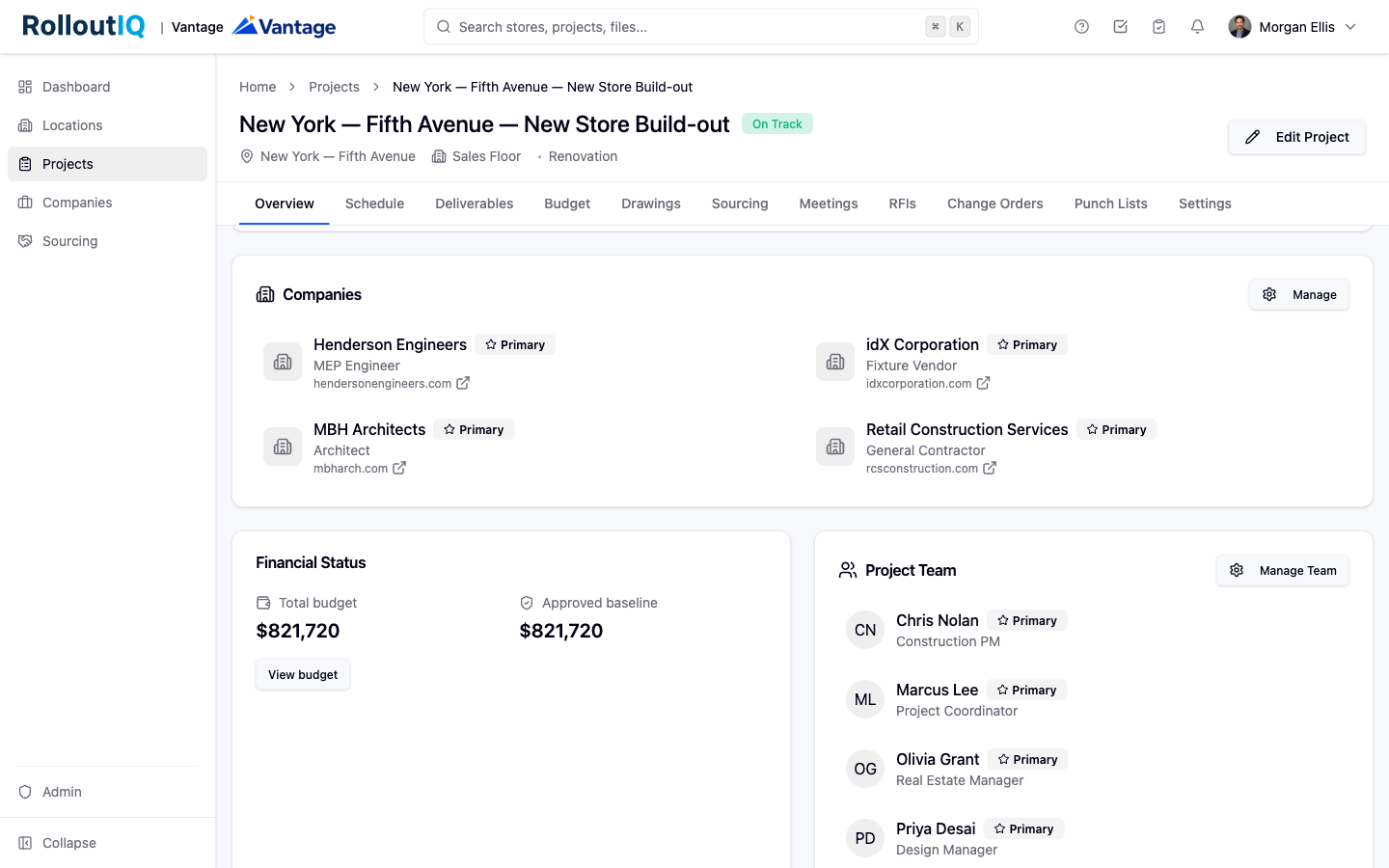
A company role, such as general contractor or architect, carries a defined level of access. When you assign a company that role on a project, its team members inherit the access that comes with the role. You manage access at the firm level, not one login at a time, so onboarding and offboarding a vendor is a single action.
Open the project and switch to the Companies tab.
Select Add Company.
Use Select Company to pick the firm from your directory, then choose its role with Select Role.
If this firm is the lead for that role, turn on Make Primary Company. You can also mark an existing assignment with Set as Primary later.
Save the assignment. Team members at that firm now inherit the access the role provides.
You can assign a company at the location level the same way, from the Companies tab on a location, when a firm works on a specific site rather than the whole project.
Access flows from the assignment, so a vendor sees only what their firm is assigned to and nothing else in your portfolio:
A general contractor's project manager sees the projects where their firm holds the general contractor role, working alongside your internal team.
They do not see projects their firm is not assigned to, and they do not see the rest of your portfolio.
Sensitive fields can stay hidden from external firm users when their role does not include access to them.
A company assignment sets the access, but a person still needs an active account to sign in and use it.
Open the company and go to the Contacts tab.
On a contact, choose Invite as member. Confirm their email and, for an outside firm, the Guest (vendor) role.
Send the invitation. Once they accept, they inherit their company's project access automatically.
To end a firm's access, remove its assignment from the project. Use Remove Company on the assignment, and the firm's team loses that project access right away.
