A project budget in RolloutIQ is a governed cost baseline. You build it once from a reusable template, lock it with an approval, and from then on change it only through revisions that route for sign-off and leave a permanent version history. This keeps every store project on the same cost structure and gives finance a defensible record of what the committed number was at each point in time.
Each project has one budget in a single currency, taken from the project. Your cost categories need to be set up first, since the budget is built on them.
Open a project's Budget tab and choose Create Initial Budget.
Start from a template. Load an active budget template to pre-fill the cost categories at zero, or start with a blank budget.
Enter amounts. Set a target amount for each cost category in the full-screen editor. Categories are grouped so you can expand and collapse sections as you work.
Set contingency. Add reserve lines where you want a cushion. A reserve is sized as a percentage of the categories it protects.
Prepare for submission. Open Prepare for submission to preview the exact approval path, then Submit for approval. When the last approver signs, the budget locks in as your first baseline version.
Once a budget is approved, you cannot edit it directly. Every later change flows through a revision that routes for approval based on its size.
Revise the budget. On the Budget tab choose Revise budget. The editor reopens with your current numbers.
Make your changes. Adjust line amounts, add a category, or draw down a reserve.
Give a reason. Add a description and select a reason category, then submit. RolloutIQ routes the revision by its size and your approval setup.
Approvers decide. Each approver can approve, return it for edits, or reject it. An approved revision applies its changes and freezes a new version. A rejected revision leaves the budget untouched.
The person who raises a revision cannot also approve it, so a change always gets a second set of eyes. If an approver is out of office, they can hand their approvals to a colleague for a set period.
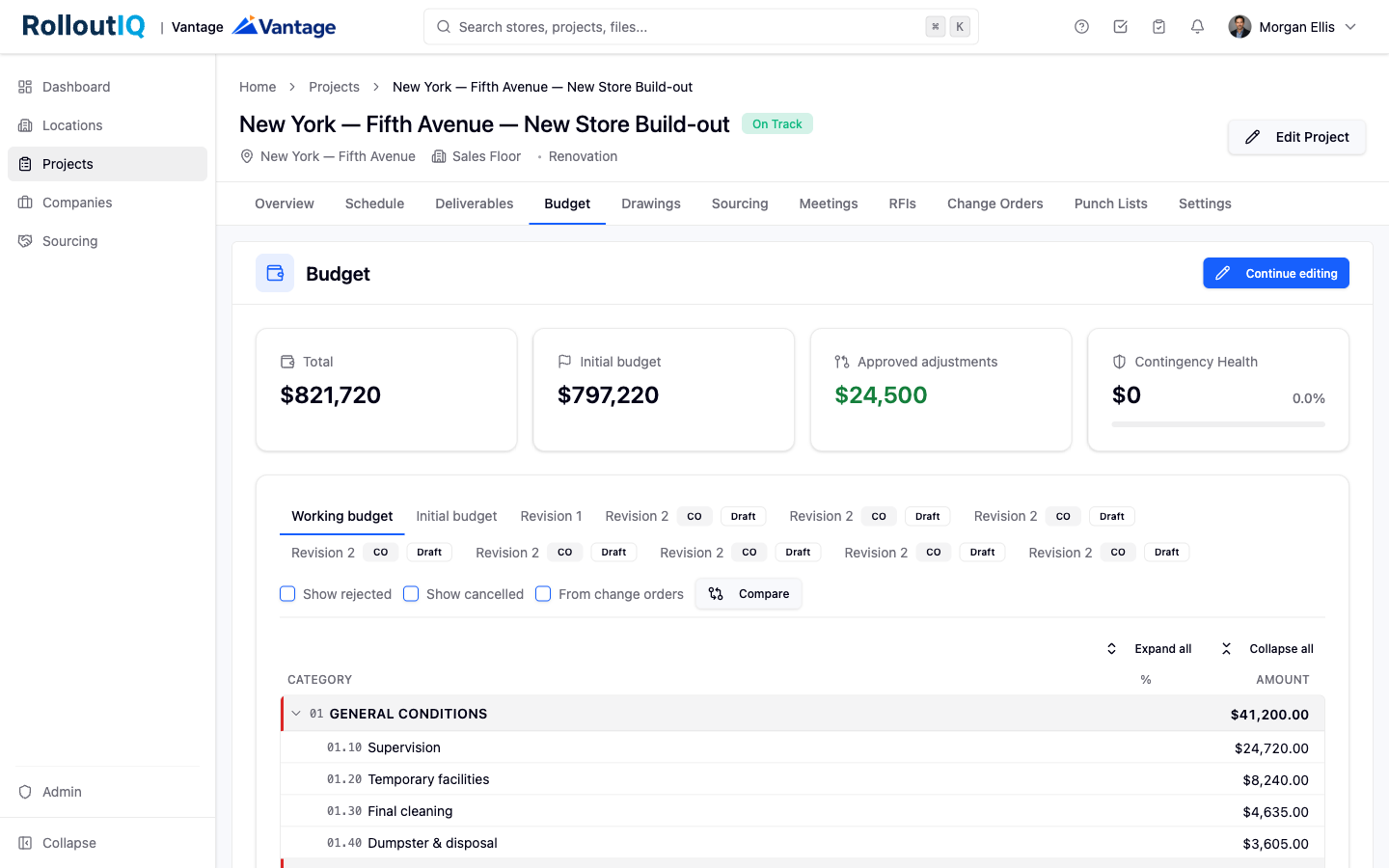
The Budget tab shows headline figures: total budget, the initial budget, the net of approved adjustments, and contingency with a draw-down indicator.
Expand the cost-category breakdown to see how the money is allocated.
Open Version History and use Compare to put any two versions side by side and read the line-by-line difference. Every approved version records who approved it and when, and can never be quietly edited after the fact.
Budget is switched on per account by the RolloutIQ team, so it may not be enabled for every workspace. Setup also requires your cost categories to be in place and at least one approval matrix configured for budgets so revisions know where to route.
