Punch lists capture every defect and pass or fail check found during a store walk, route each item to the person or vendor who can fix it, and close each one through a verification step that protects your record. Every walk on a project lives in one place, and every item can be filtered, grouped, or reviewed on the floor plan it belongs to.
Punch List is a newer capability and may not be enabled for every account. If you do not see the Punch Lists tab on a project, an administrator has not turned it on for your workspace.
A walk has to exist before an item can be captured, so every item stays traceable to a walk.
Open a project and go to the Punch Lists tab, then switch to the Walks view and click New walk.
Pick a walk type, schedule a date, and choose a template so the item list is ready when the walker arrives.
If this walk needs different closeout rules from your workspace default, override the vendor self-close and closure-photo settings on the walk itself.
Any project team member on the walk can capture items. Each item picks up a project-wide identifier (PUNCH-1, PUNCH-2, and so on) so everyone knows which item you mean.
On a phone: tap Add item. A sheet opens with a photo capture that goes straight to the rear camera, a severity picker, and a save button.
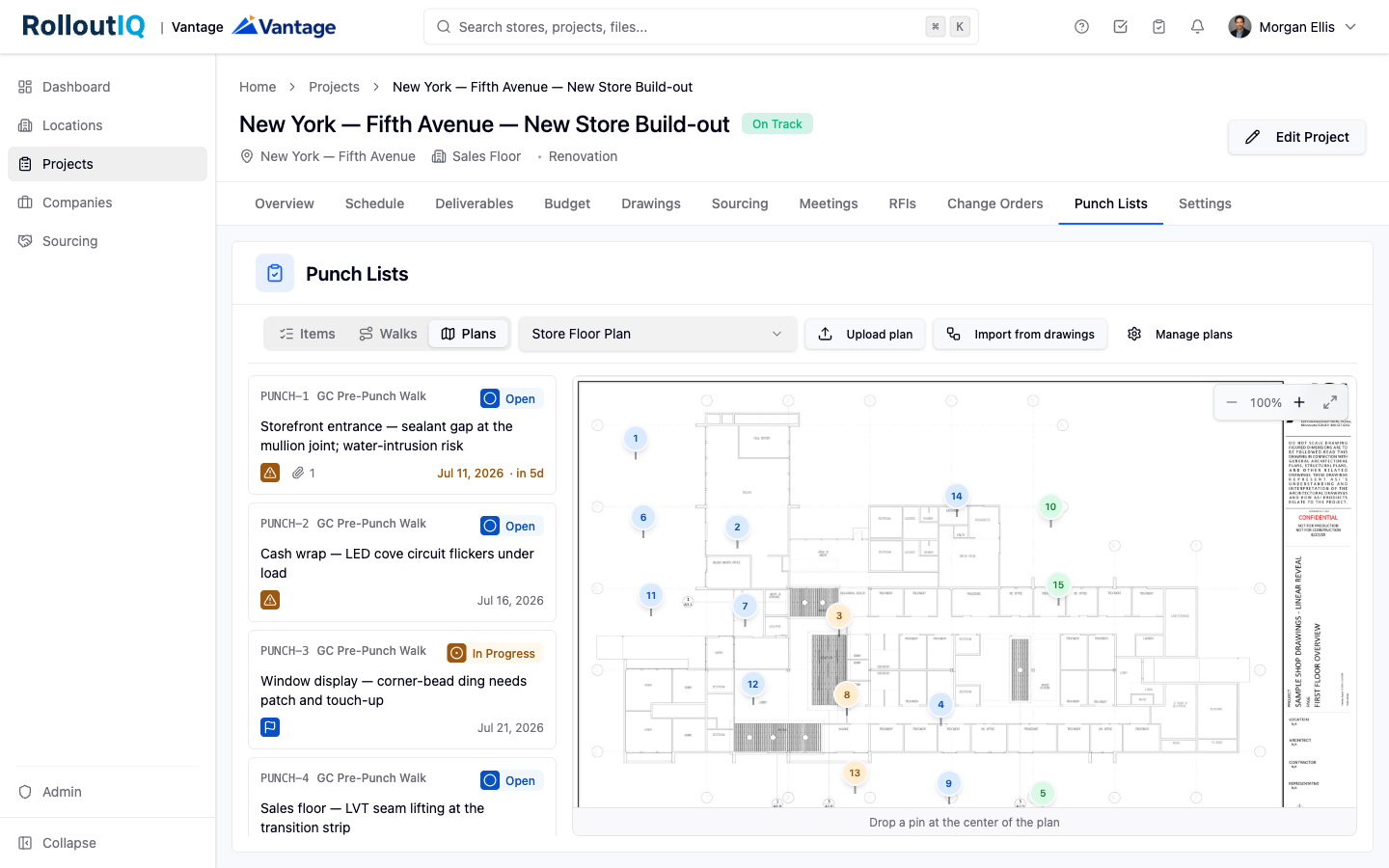
On a floor plan: switch to the Plans view and tap the plan where the defect is. The create sheet opens pre-pinned to that spot. You can upload a plan or import a page from the Drawings module when it is enabled.
On an item, choose Assign and pick a person or a company. People already on the project team surface first; typing searches more widely.
Set a due date. The item lands on the assignee's My punch list items page, and a person you assign directly also receives a notification.
Vendors and other external companies see only the items assigned to them or their company. They never see other vendors' items on the same project, so you can invite several vendors into one project safely.
An item does not close until someone with verify authority signs it off. This gate is the default that protects your closeout record.
The assignee opens their My punch list items page, moves the item into progress, then to waiting for verification, adding a closure photo when the walk requires one.
A verifier reviews the photo and marks the item closed. On walks set to allow vendor self-close, an assigned vendor can close their own item directly.
If something was closed by mistake or a defect returned, an authorized user can re-open a closed item with a required note. A walk becomes eligible for completion once its last critical item closes.
