The project schedule is where you plan the deliverables and milestones that race a store to its open date. Each item links a phase to a deliverable, carries target, planned, and actual dates, and connects to other items through dependencies. When a date moves, RolloutIQ recalculates everything downstream so the timeline stays honest.
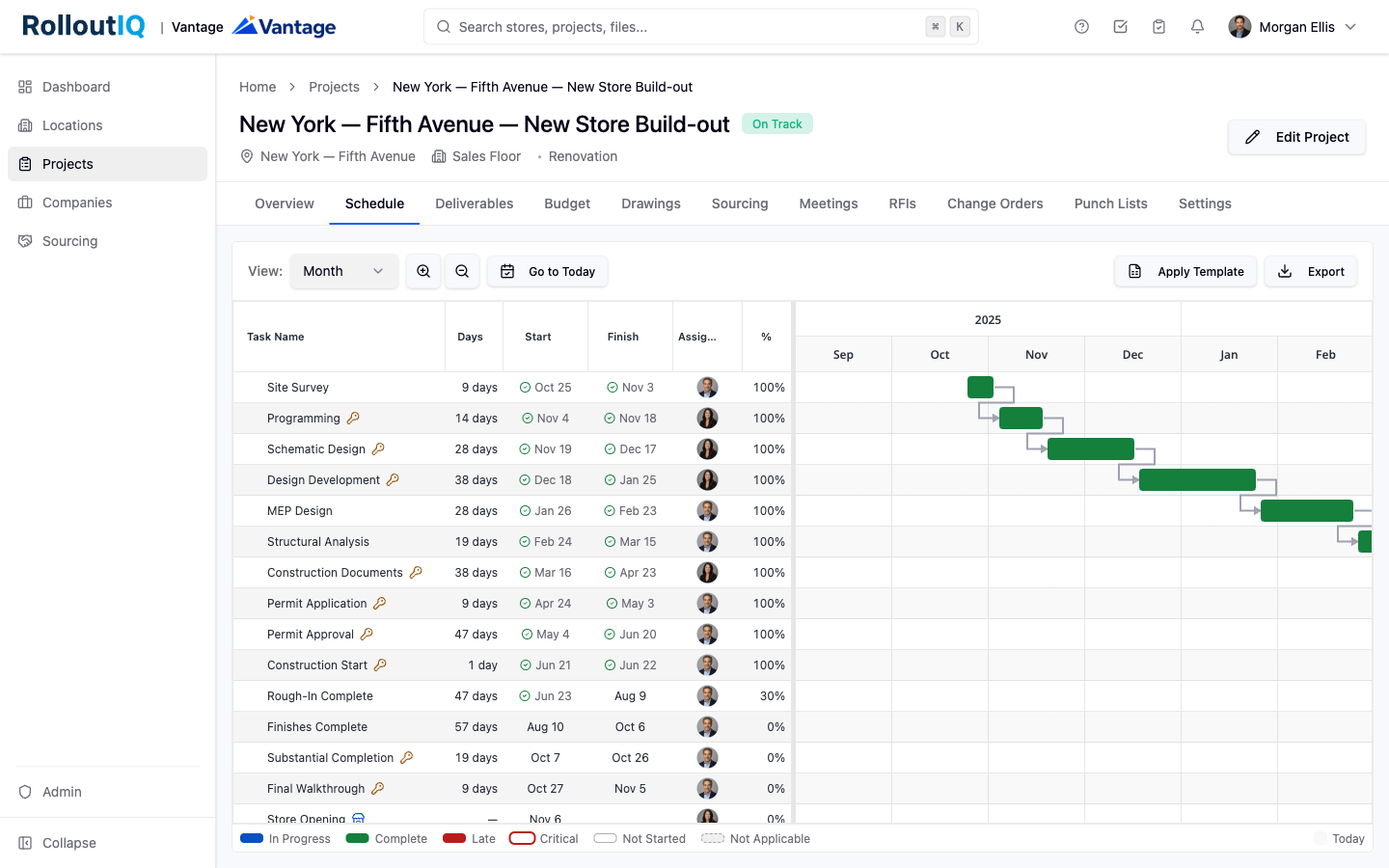
The fastest way to start is to apply a template your admin has published for a common project type.
Open the project and go to the Schedule section. The list of deliverables sits on the left, grouped by phase, with the timeline on the right.
Click Apply Template and choose a template such as new construction, refresh, or relocation.
Pick a start date. The template inserts every phase and deliverable, wires up the dependencies, and calculates planned start and end dates from your anchor date.
Deliverables come from your tenant catalog. To add a milestone type that is not on the list, an admin curates it centrally first; you cannot type free-text deliverable names on the project.
Click any row in the list or any bar on the timeline to open its detail sheet.
Adjust the planned dates, edit the dependencies, or change the duration. Before you save, RolloutIQ previews every downstream item that would move and by how many days.
Click Save changes to commit. Your edit and every downstream shift are written together.
As work happens, use Set actual start, Set actual end, or Mark complete. Actuals record history and do not re-ripple the planned schedule.
If a deliverable does not apply to this project, turn on Not applicable on its detail sheet. Its planned and actual dates clear, and it drops out of the health and on-track math.
Dependencies define how one deliverable drives the next, and they are what makes a moved date ripple through the rest of the plan.
Editing a planned date or a dependency shifts every downstream item in the same save, so the plan never drifts out of sync.
If a change would create a circular dependency, the save is refused and the exact loop is shown so you can fix the wiring instead of fighting the math.
To rebalance the whole plan at once, use Recalculate Dates. Choose Calculate forward to walk the plan forward from today, or Calculate from opening date to pin the closing milestones to the target open date and pull everything else back to fit.
RolloutIQ computes health from the real plan, not a manually maintained flag.
Each row carries an on-track indicator. It reads On track while the plan is being met and switches to Behind schedule, with the number of days behind, when a planned start or end has passed without the matching actual recorded.
The critical-path highlight marks the chain of deliverables driving the open date, with slack shown on the items near it.
Each project rolls up to a single health signal, such as On Track or At Risk, based on how much of the schedule is running behind plan. This is what leadership sees across the portfolio.
