Companies is your directory of the outside organizations that work on your projects, such as general contractors, architects, engineers, and suppliers. Each company holds the people you actually email, call, or assign work to. Because the directory is shared across the product, a firm you add once can be reused wherever you pick companies or contacts, so you stop retyping the same firm name on every new project.
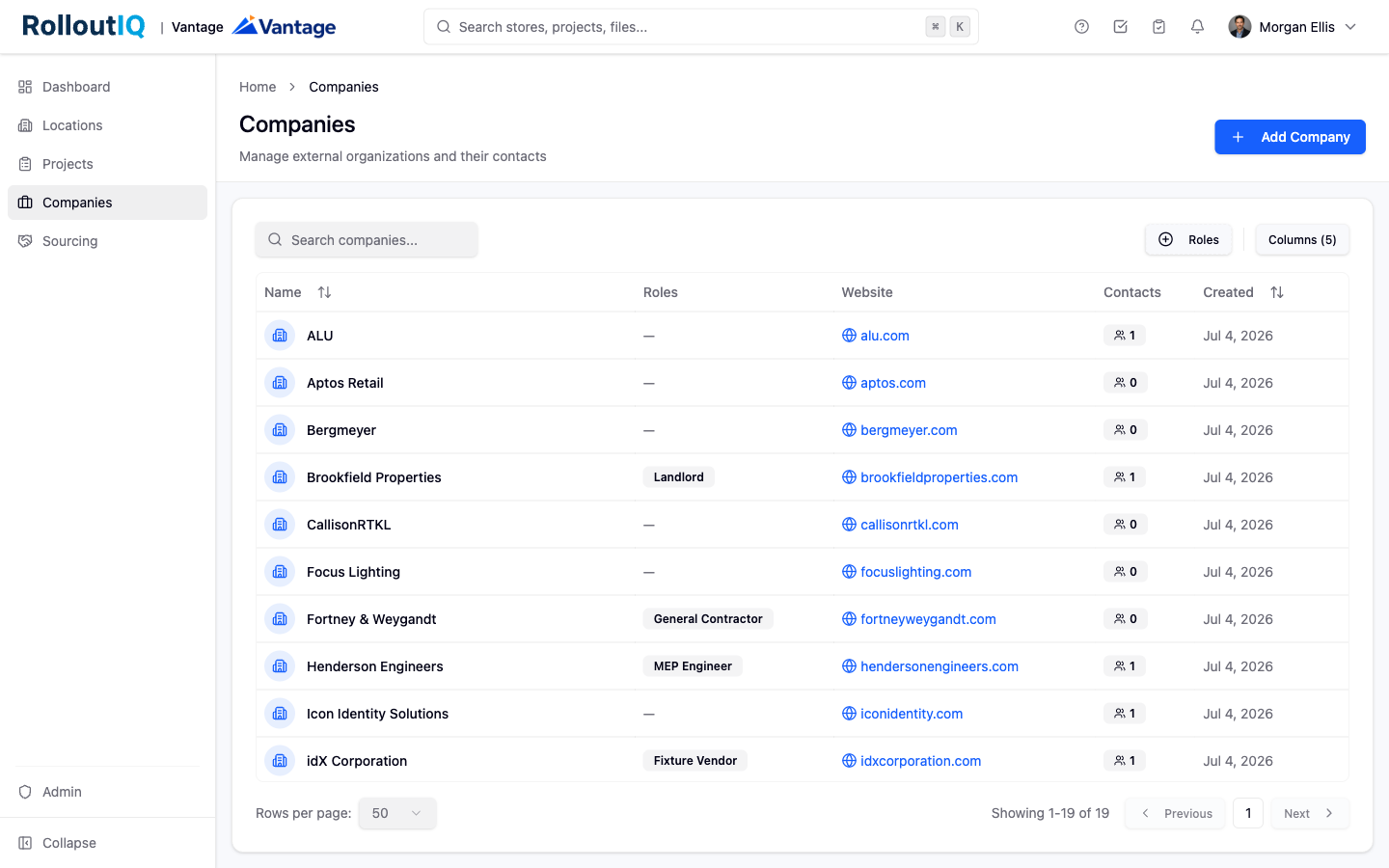
The directory is a single, searchable record of every external firm your team works with and the people at each one. It answers three questions in one place: who you have worked with before, who to contact at each firm, and which firms are on a given job. It also acts as the backbone for external access, so assigning a firm to a project can extend the right level of visibility to its team.
Open Companies from the main navigation to see every external organization your team works with.
Select Add Company.
Company Name is required. Enter the firm's name, and optionally add a website, a description, and an address.
Save the company. It is now available across the product wherever you pick a firm.
Contacts are the individuals at a firm. Each contact belongs to exactly one company, so a person who works at two firms is recorded as one contact at each.
Open the company and switch to the Contacts tab.
Select Add Contact.
Capture the First Name, Last Name, and Job Title, and optionally an email, phone, and address.
If the person also signs in to RolloutIQ, use Link to User to connect the contact to their account, so the directory and the access list stay in sync.
As your directory grows, use search and filters to find a firm fast:
Search by company name, website, the city in the address, or the name or email of one of the firm's contacts.
Filter by role to narrow the list to, for example, every firm you work with as a general contractor.
Open any company to review its Overview and its full list of contacts before you assign it to a job.
Note that the directory covers outside firms only. Internal team members are managed separately in the Users area rather than as contacts.
